Bluetooth: the basics
Bluetooth is a short-range wireless technology that lets devices communicate with each other without cables. It’s commonly used for things like headphones, smartwatches, car audio systems, and hearing aids. Bluetooth works best when devices are close together (usually within about 10–30 feet), have enough battery power, and are not overwhelmed by too many other wireless connections nearby. Because Bluetooth is designed to save battery life, it may occasionally disconnect or need to be “reminded” of which devices it should connect to. Yet, how do we know when it is purposely doing it, or if it is a sign of trouble?
Getting Bluetooth to work (and keep working, wishful thinking)
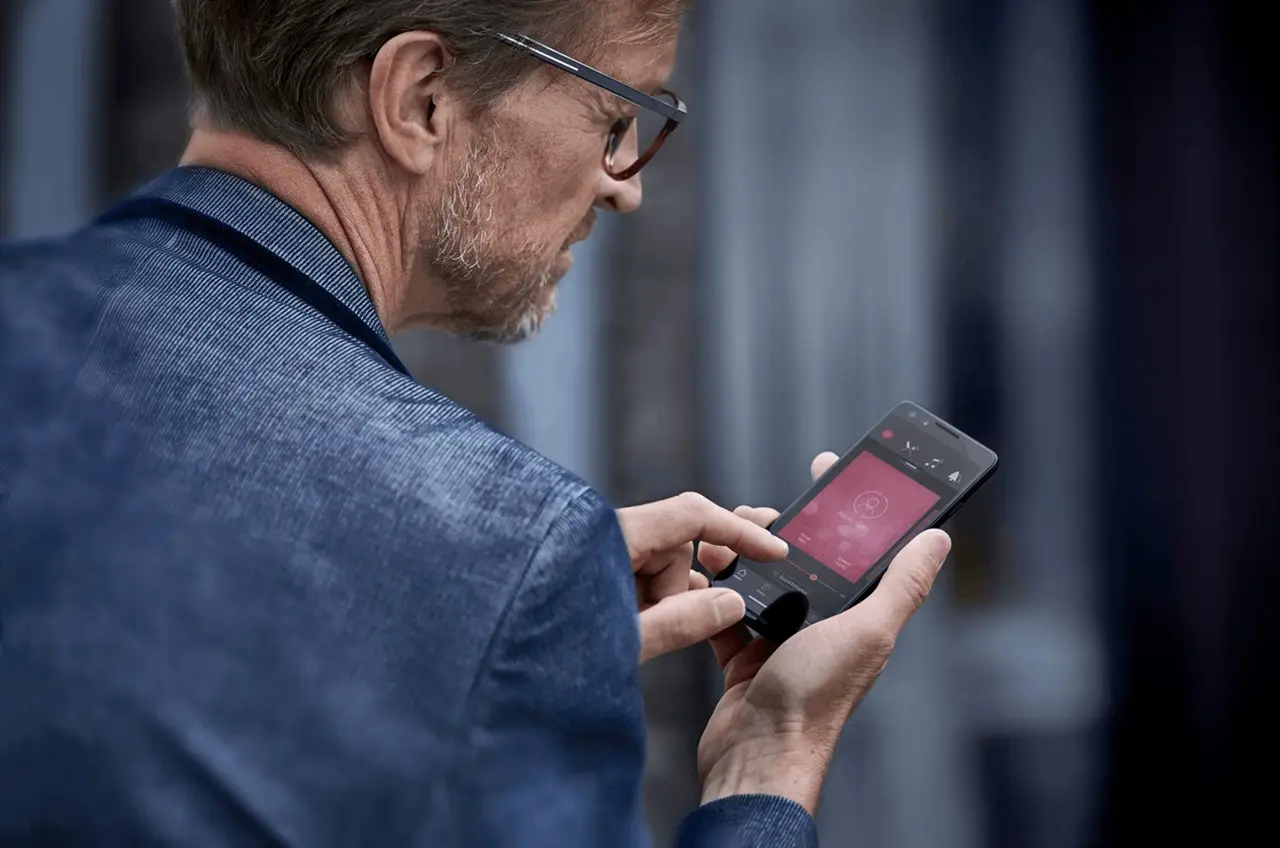
If Bluetooth isn’t connecting properly, the fix is often simple. First, make sure both devices (your phone and your hearing aids) are charged and that Bluetooth is turned on in your phone’s settings. Turn Bluetooth off and back on to refresh the connection. If that doesn’t help, restart your phone. Restarting your phone clears out temporary software issues that can interfere with Bluetooth. Next, check that the hearing aids are not already connected to another device, as Bluetooth usually only connects to one device at a time. Bluetooth is monogamous. If problems continue, removing (“forgetting”) the hearing aids from your phone’s Bluetooth list and pairing them again from scratch often resolves the issue. When in doubt, starting fresh is one of the most reliable ways to get Bluetooth working again.
But sometimes you did all this and it still doesn’t work.
Many of you call us. We are so busy helping everyone with Bluetooth pairing that we need to figure out how to help you without a phone call. It isn’t that we don’t want to talk to you or hear from you; we are busy, and other people can help you who were hired to help with Bluetooth trouble! We are offering up the Manufacturer’s customer service number. They have employees standing by for this service. Let’s let the employee keep their job and be busy, and call them. We are happy to do something else. As a small business owner, there is always something else to do. I digress, and yeah, I will someday tell you about what else we do besides help you all with Bluetooth issues. My face is turning blue. Just kidding. Besides wanting to go on tour with my rockstars or help the artists paint, I want to learn what there is to create!
The Fine Details of what ReSound will help during a customer call
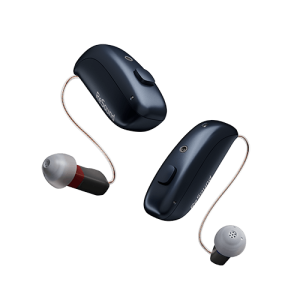
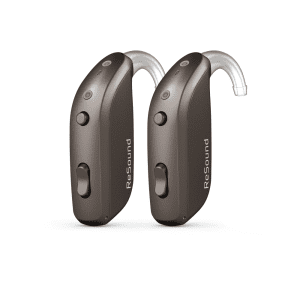
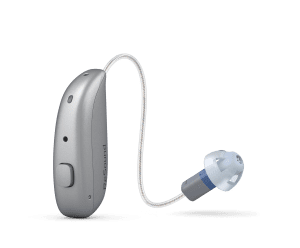
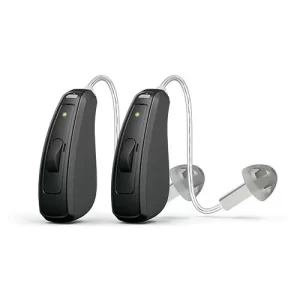
Jeff, our patient, has a new pair of ReSound hearing aids. He loves them, other than the Bluetooth connectivity. We decided to give him the 1- 800 number to him so Resound can share their tricks.
ReSound Customer Service Number: (888) 735-4327
Here is what Jeff shared with us! We thank Jeff and understand his Bluetooth is now connected and stable. Has only been a few days.
Please follow the steps below to fully re-pair your hearing aids with your phone (Note: You can skip to the bulleted steps if you encountered difficulties re-pairing with the app):
1. Turn off Bluetooth on all other phones and tablets.
2. Go to Settings > Connections > Bluetooth > tap on the  to the right of your hearing aid > click Unpair. Repeat until no hearing aids are listed as Paired or Previously Connected.
3. Go to the main page of Settings > Apps > Smart 3D > Force Stop > OK.
4. On this same page, go to “Storage” and click “Clear Data” near the bottom left-hand corner and then “Delete” to confirm.
5. Close all apps running in the background of your phone by pressing the “III” icon on the bottom left corner of your phone, then click “Close all”.
6. Restart the phone by pressing the phone’s power button and volume down button simultaneously for a few seconds, and then select Restart.
7. Open the Smart 3D app.
8. Tap on “Yes, connect now”.
9. Accept the terms and conditions as well as permissions.
10. Select your hearing aid type and follow the on-screen instructions to complete the pairing flow.
• If the app is unable to connect after the second time the app has you restart your hearing aid, please exit out of the app and go to your phone Settings.
• In Settings, go to Connections > Bluetooth > tap on the to the right of your hearing aid > click on Disconnect (it should switch to Connect. This is normal).
• Exit your phone Settings and open the Smart 3D app again. Follow the on-screen instructions to complete the pairing flow like before and this time it should allow the hearing aid to connect.
And that is it in a nutshell.. Or is it? More to come, and again, thanks for reading.
Cheers, Kim (with idea and help from Jeff). Thank you Jeff.