How to Connect Hearing Aids to Your Smartphone & Fix Common Bluetooth Issues (iPhone & Android Guide)
Modern hearing aids do much more than amplify sound, they connect directly to your smartphone using Bluetooth technology. This allows you to stream phone calls, music, videos, podcasts, and even GPS directions straight to your hearing aids. Many users also enjoy adjusting volume or sound settings discreetly through an app.
If you’re setting this up for the first time, don’t worry. The process is usually simple and only takes a few minutes. Below is a step-by-step guide for both iPhone and Android users, along with easy fixes for common Bluetooth problems.
Pairing Hearing Aids with iPhone
Apple devices use a system called MFi (Made for iPhone), which is built specifically to work smoothly with compatible hearing aids.
Step-by-Step Instructions:
1. Open Settings: Tap the gray gear icon on your iPhone’s home screen.
2. Tap Accessibility: Scroll down and select Accessibility. This section contains features designed to support hearing, vision, and mobility needs.
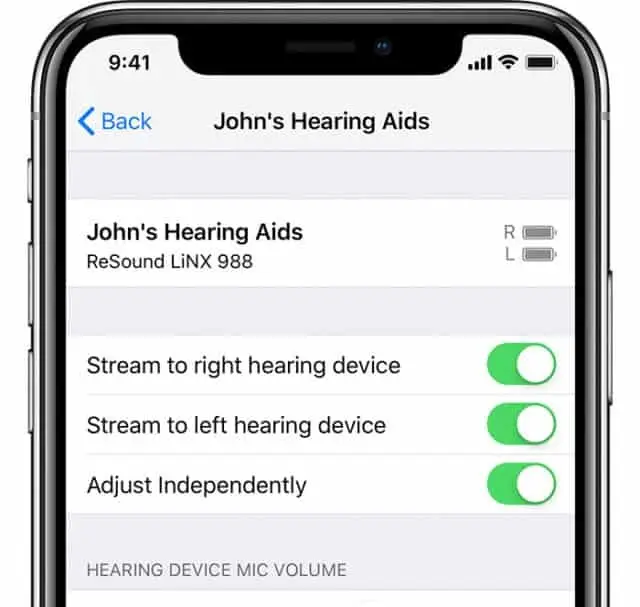
3. Select Hearing Devices: Under the “Hearing” section, tap Hearing Devices. Your phone will begin searching for nearby compatible hearing aids.
4. Turn Your Hearing Aids Off and Back On: This puts them into pairing mode.
- If battery-powered, open and close the battery doors.
- If rechargeable, turn them off and back on using their buttons (or briefly place them in the charger, then remove them).
5. Wait for Your Hearing Aids to Appear: Within a few seconds, you should see their name appear under MFi Hearing Devices.
Example: You might see something like “John’s Oticon Right” and “John’s Oticon Left.”
6. Tap Your Name and Choose Pair: A pairing request will pop up. Tap Pair. If you have two hearing aids, you may see the prompt twice, once for each side.
Once paired, your hearing aids will automatically reconnect whenever they are turned on and within range of your iPhone.
Example: If you answer a phone call, the sound will stream directly into your hearing aids without needing speakerphone.
Pairing Hearing Aids with Android
Android phones use standard Bluetooth pairing. The steps may vary slightly depending on your phone model (Samsung, Google Pixel, etc.), but the general process is similar.
Step-by-Step Instructions:
1. Open Settings: Tap the Settings app on your phone.
2. Tap Bluetooth (or Connections > Bluetooth): On some devices, Bluetooth is found under Connections.
3. Turn Bluetooth ON: If it’s not already on, toggle it to enable Bluetooth.
4. Restart Your Hearing Aids: Turn them off and back on to activate pairing mode.
5. Look Under Available Devices: Your hearing aids should appear in the list of devices available to pair.
6. Tap to Pair: Select your hearing aids and confirm pairing when prompted.
Important for Most Android Users:
Many hearing aid brands require or strongly recommend using their dedicated smartphone app to initiate pairing for full functionality.
Download your hearing aid brand’s app, such as:
- Phonak
- Oticon Companion
- ReSound Smart 3D
- Signia
- Widex Moment
Open the app and follow the on-screen pairing instructions.
These apps often allow you to:
- Adjust volume independently for each ear
- Change listening programs (e.g., restaurant mode, outdoor mode)
- Locate lost hearing aids
- Receive remote adjustments from your provider
Example: If you’re in a noisy restaurant, you can open the app and switch to a “Speech in Noise” program for clearer conversations.
Common Bluetooth Troubleshooting Tips
Even when everything is set up correctly, Bluetooth can occasionally disconnect. Most problems are easy to fix.
1. Restart Your Phone
This solves more issues than most people expect.
Steps:
- Power your phone completely off
- Wait 30 seconds
- Turn it back on
Example: If your calls suddenly stop streaming to your hearing aids, a quick phone restart often restores the connection.
2. Restart Your Hearing Aids
Just like your phone, hearing aids sometimes need a reset.
Battery-powered models:
- Open the battery door for 10 seconds
- Close the door
Rechargeable models:
- Place them in the charger for 10 seconds
- Remove them
This refreshes the Bluetooth connection.
3. Turn Bluetooth Off and Back On
Sometimes Bluetooth simply needs a quick reset.
Steps:
- Go to Settings > Bluetooth
- Turn Bluetooth OFF
- Wait 10 seconds
- Turn it back ON
Your hearing aids should reconnect automatically.
4. Forget and Re-Pair the Hearing Aids
If the connection keeps dropping or won’t reconnect, start fresh.
Steps:
- Go to Bluetooth settings
- Tap your hearing aids
- Select Forget or Unpair
- Restart both your phone and hearing aids
- Pair them again from scratch
Example: This is especially helpful if you recently updated your phone’s software and connections stopped working.
5. Check for Software Updates
Outdated software can interfere with Bluetooth.
Make sure to:
- Update your phone’s operating system
- Update your hearing aid app
- Ask your provider if a firmware update is available for your hearing aids
Example: After a major iPhone update, older app versions may temporarily lose compatibility until updated.
6. Watch for Interference
Bluetooth has a limited range and can be affected by surroundings.
Connection may struggle if:
- Your phone is in another room
- You’re surrounded by many wireless devices
- You’re streaming to multiple devices at once
- Your phone battery is very low
For best performance:
- Keep your phone within a few feet
- Avoid blocking it with thick clothing or bags
- Turn off unused Bluetooth devices
When to Get Additional Help
If you’ve tried everything and Bluetooth still isn’t cooperating, it may be time for extra support.
You can:
- Contact your hearing care provider or audiologist
- Stop by the clinic for hands-on troubleshooting
- Ask about firmware updates for your hearing aids
- Bring both your phone and hearing aids to your appointment
Sometimes the issue may involve device compatibility or a setting that needs professional adjustment.
More Thoughts on the Phone
Often, we find it is the phone with these issues, so consider taking your phone in to be checked for Bluetooth service. We will test this by pairing the hearing aids to an iPad, and if that works, it is clear that it is the phone.